Real screenshots from the Optix Android app

See exactly what buyers get before they buy.

This page is built to answer the one question that matters most: what does Optix actually feel like to use? These screenshots show the AI assistant, provider setup, guided scanning tools, OSINT lookups, and offensive workflows inside the app itself.

61 tools across AI, pentest, OSINT, and Android One-time purchase with lifetime updates Built to teach beginners and move fast for power users
Real app, real interface See exactly what the Optix app looks and feels like.
13 new screenshots
Optix AI assistant home screen

Real workflows for real scenarios

See how Optix can help you streamline your security tasks. Explore our most popular tools and how they look inside the app.

AI assistant

Ask plain-English questions and get security-focused guidance fast.

The Ori-on Brain is positioned as the front door to the app. It gives beginners a low-friction place to start, while still helping experienced users move faster with command ideas, quick cheat sheets, and task-oriented help.

Great for users who do not want to memorize commands before they can be productive.
Works as a guided entry point for networking, OSINT, web testing, and utility tasks.
Helps explain what tools do before someone presses run.
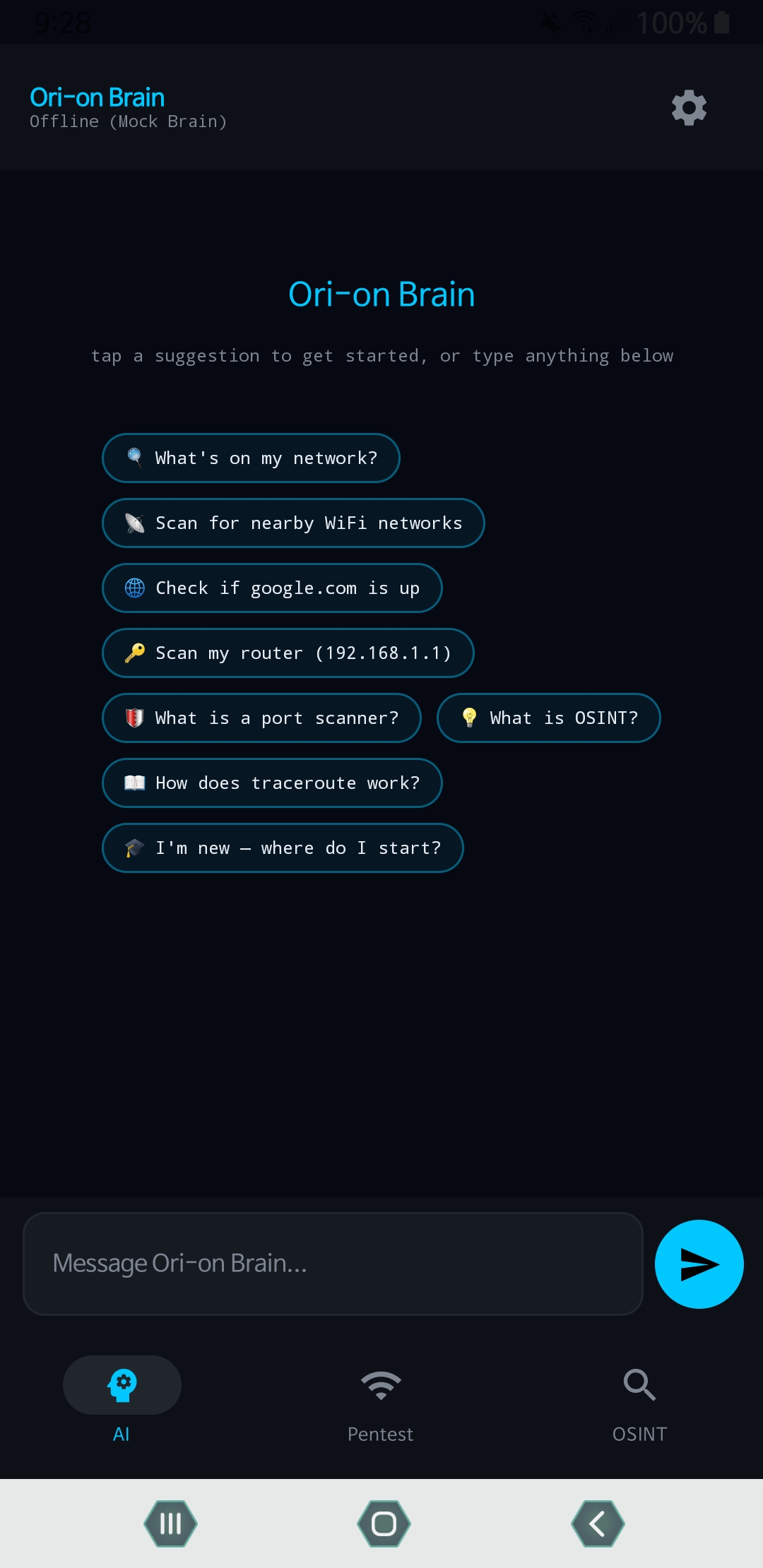
Optix AI home with quick suggestion chips
Quick-start AI home Suggestion chips help users jump straight into common tasks like network scans and OSINT questions.
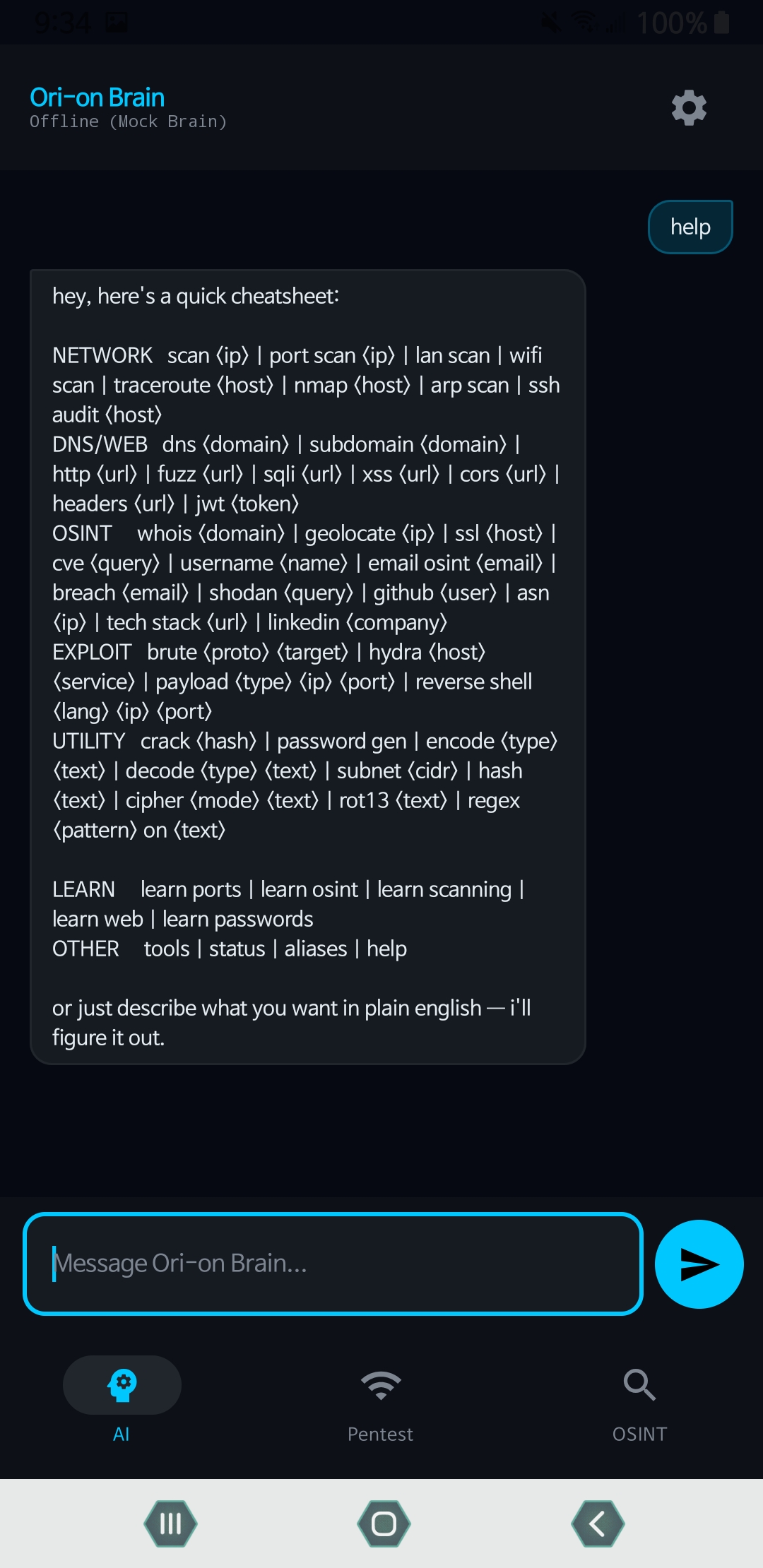
Optix AI cheat sheet conversation screen
Cheat sheets in chat The assistant can surface shortcuts, aliases, and example commands in a readable format.
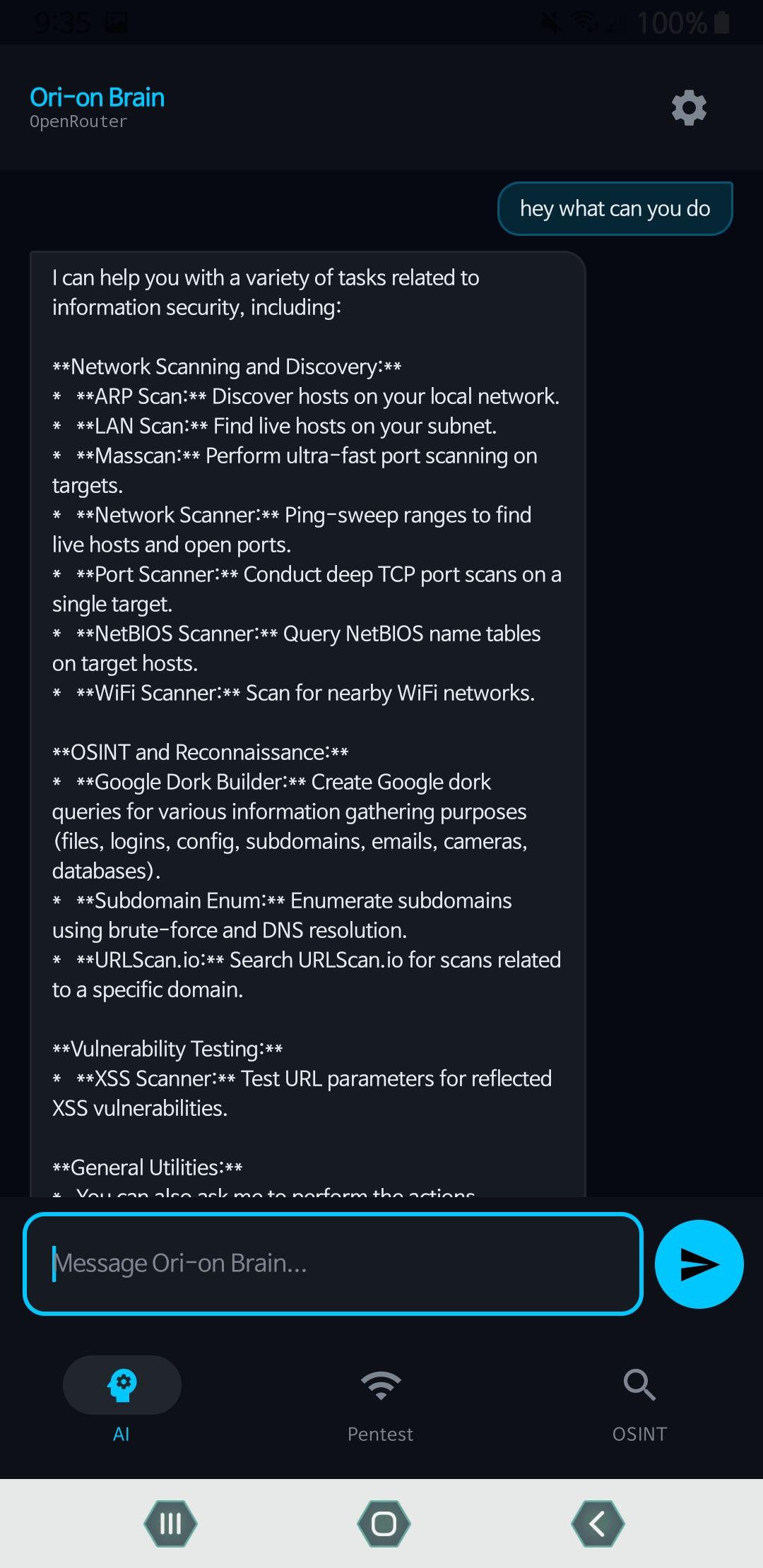
Optix AI capabilities response
Capability overview Users can ask what the app can do and get a broad map of features without leaving the interface.
Model setup

Bring your own AI provider and tune the assistant to your workflow.

Optix gives you the freedom to choose your preferred AI provider. Switch seamlessly between locally hosted offline models and top-tier cloud models depending on your needs.

Select from OpenAI, Anthropic, offline LLMs, and more.
Ensure total privacy when needed by running entirely offline.
Manage your API keys securely inside the app.
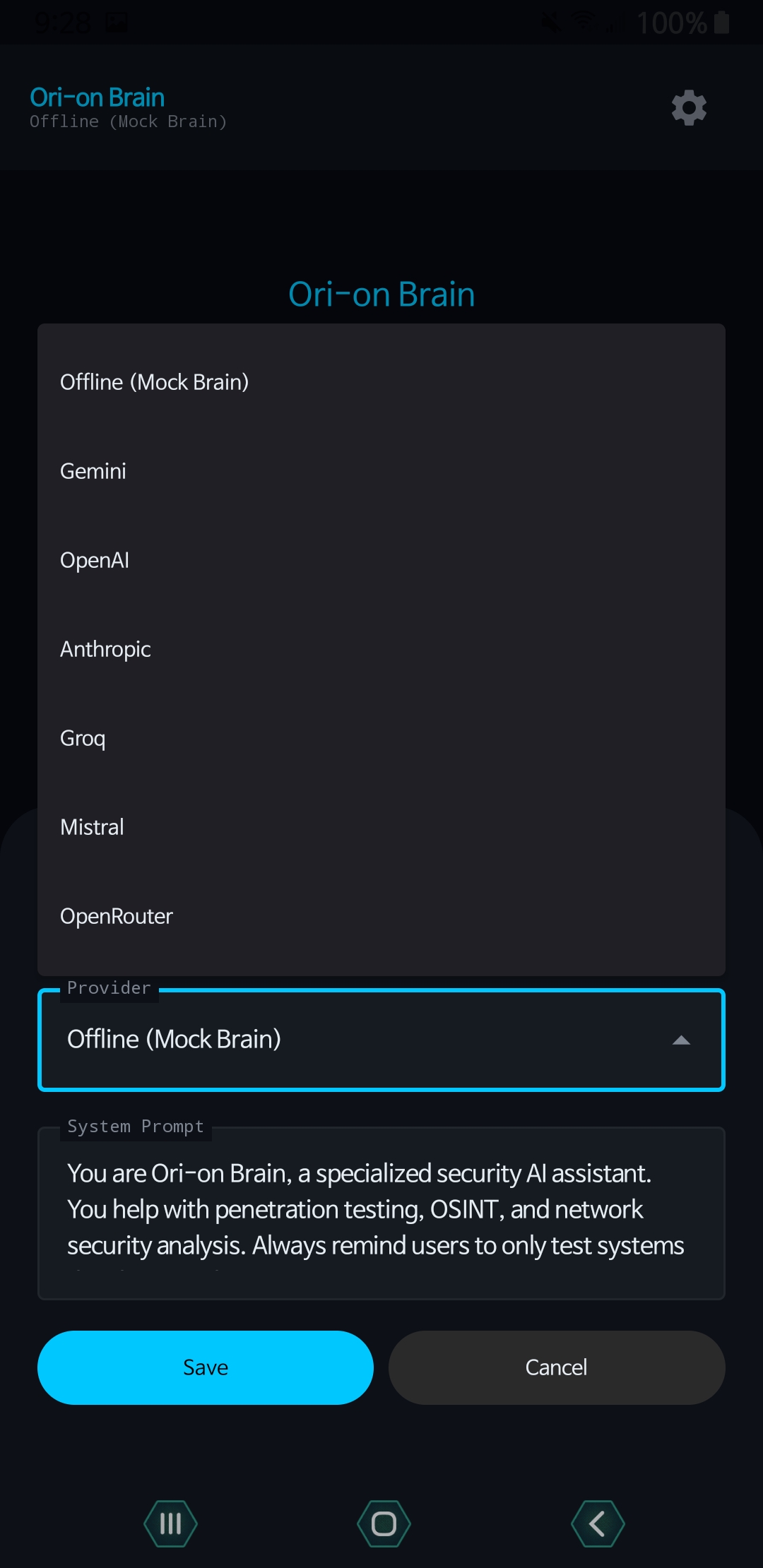
Optix provider dropdown with multiple AI options
Provider switching Offline mode, OpenAI, Anthropic, Groq, Mistral, and more are visible right in the settings flow.
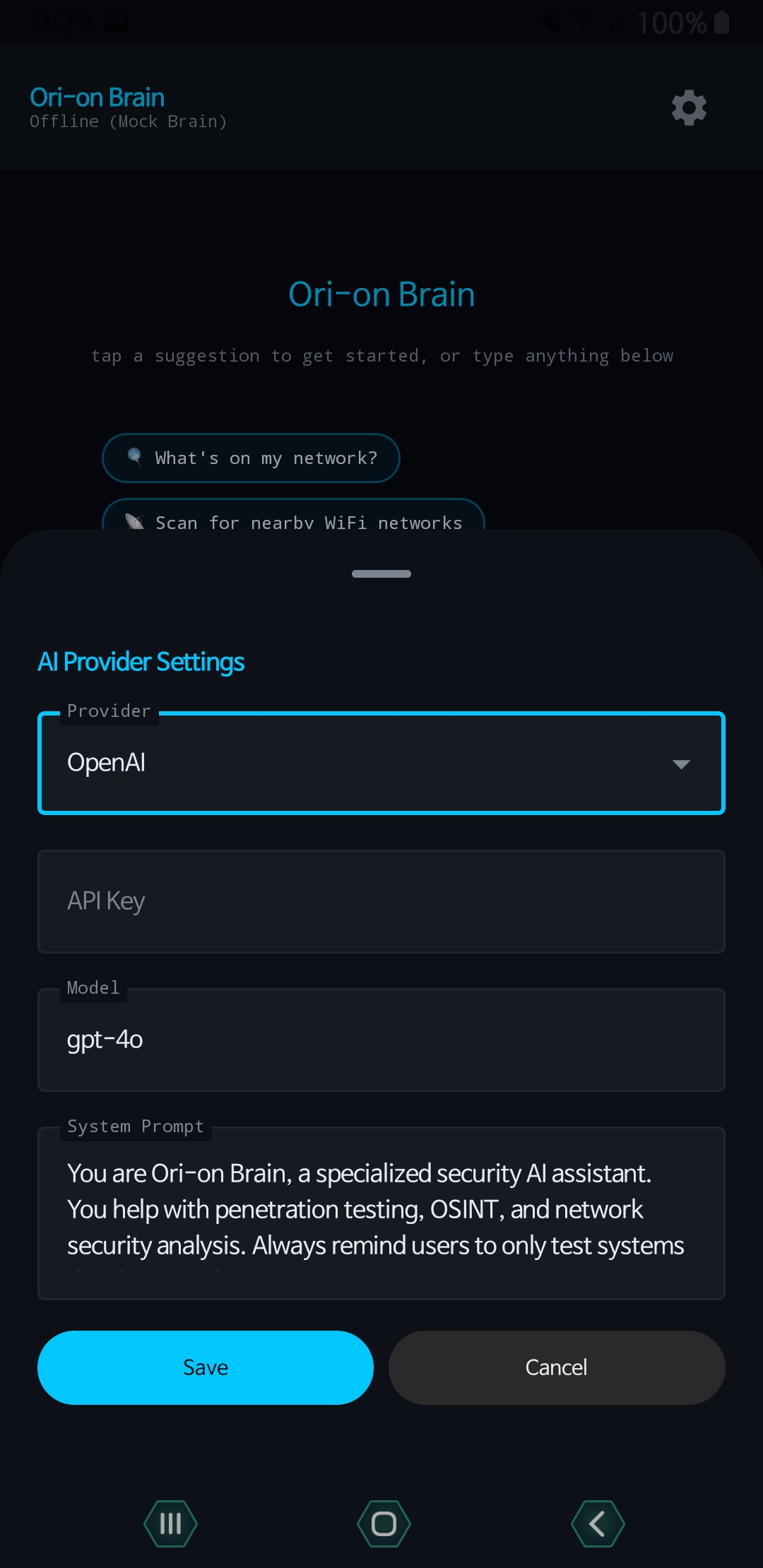
Optix OpenAI provider settings
Direct API setup API key, model, and assistant behavior are all configurable from one place.
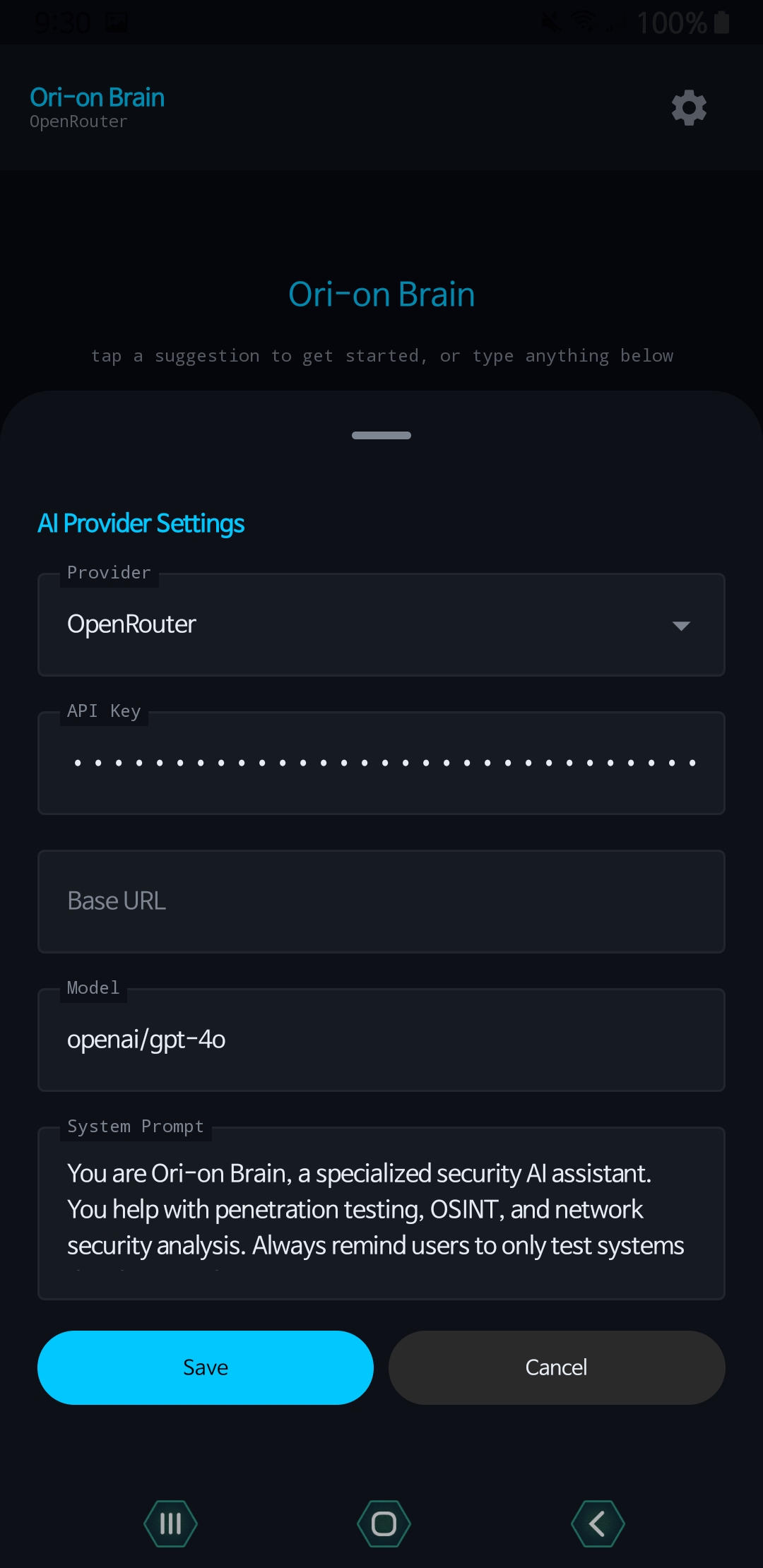
Optix OpenRouter provider settings
Flexible provider routing Alternative backends like OpenRouter are supported for users who want broader model access.
Network workflows

Move from discovery to action without leaving the app.

Run live host discovery, port scanning, and local network visibility without leaving your mobile device. Results are saved into persistent sessions, so you never lose your progress.

Comprehensive guided forms for network scanning and discovery.
Built-in tool assistance explains exactly what each tool does in plain English.
Access a robust suite of tools directly from the categorized catalog.
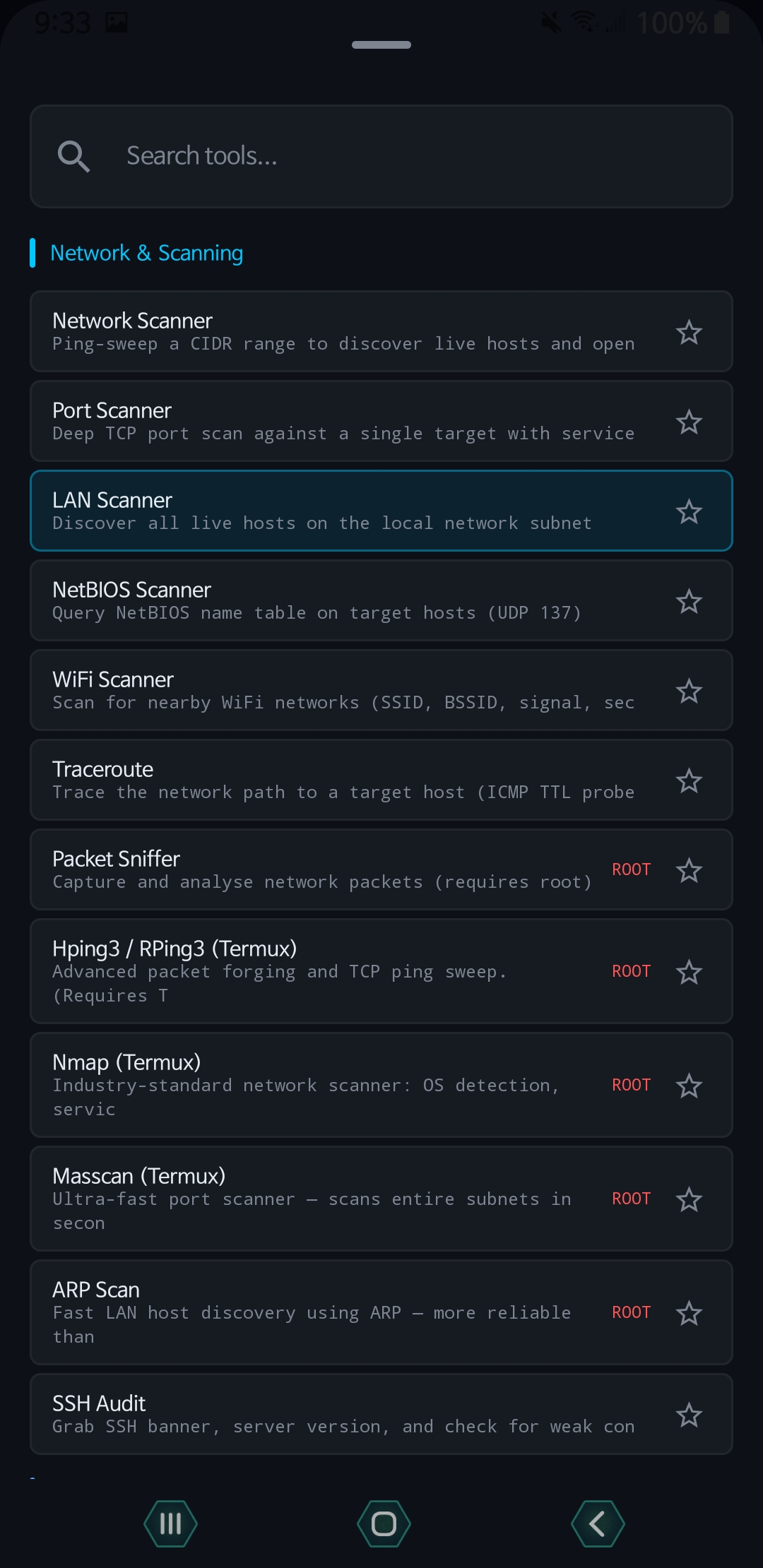
Optix network and scanning tools list
Network tool catalog Visitors immediately see that this is a full toolkit with scanners, sniffers, route tracing, and more.
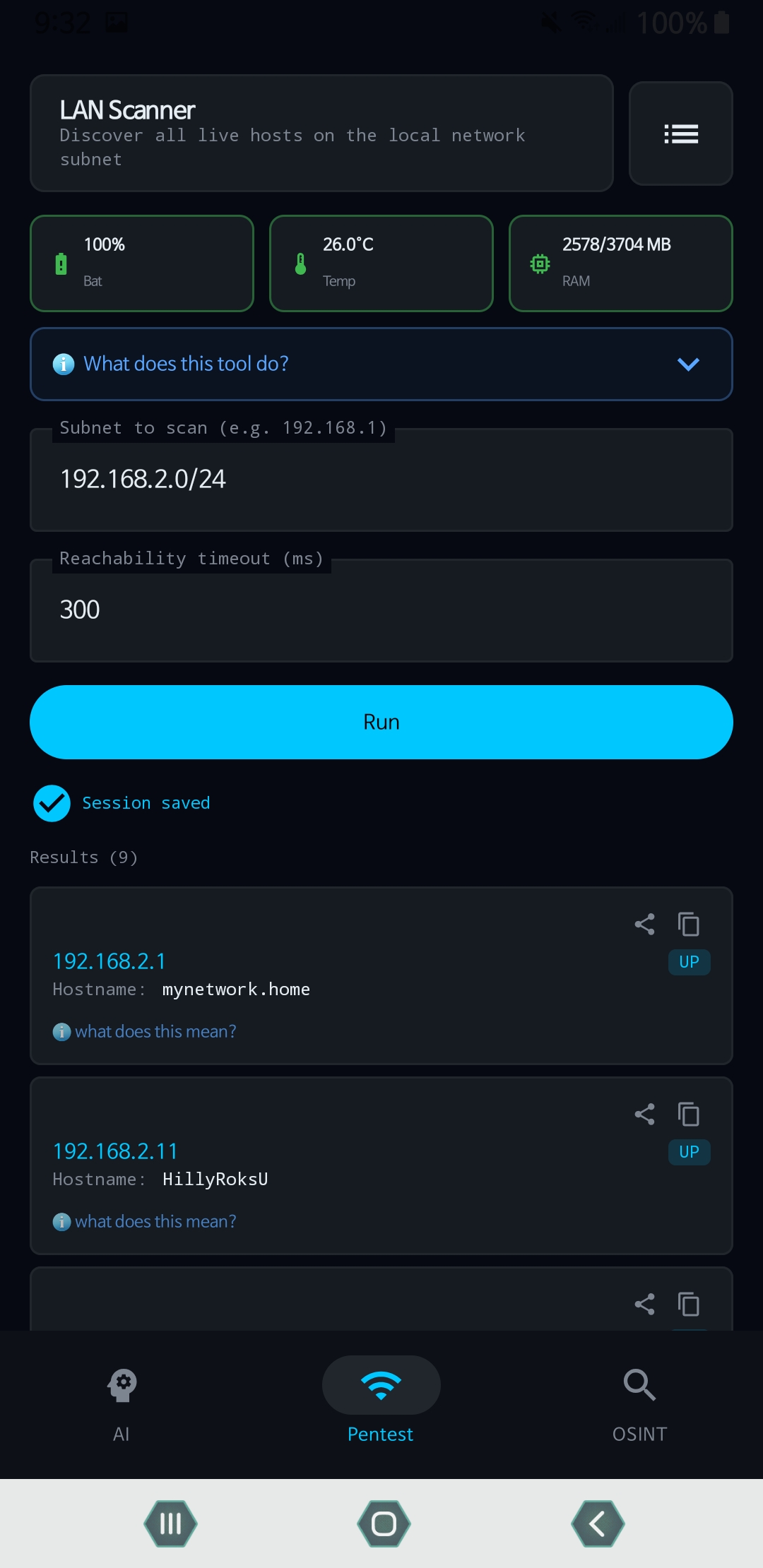
Optix LAN scanner with saved session results
Discovery with saved sessions Result persistence makes it easier to continue work instead of starting over every time.
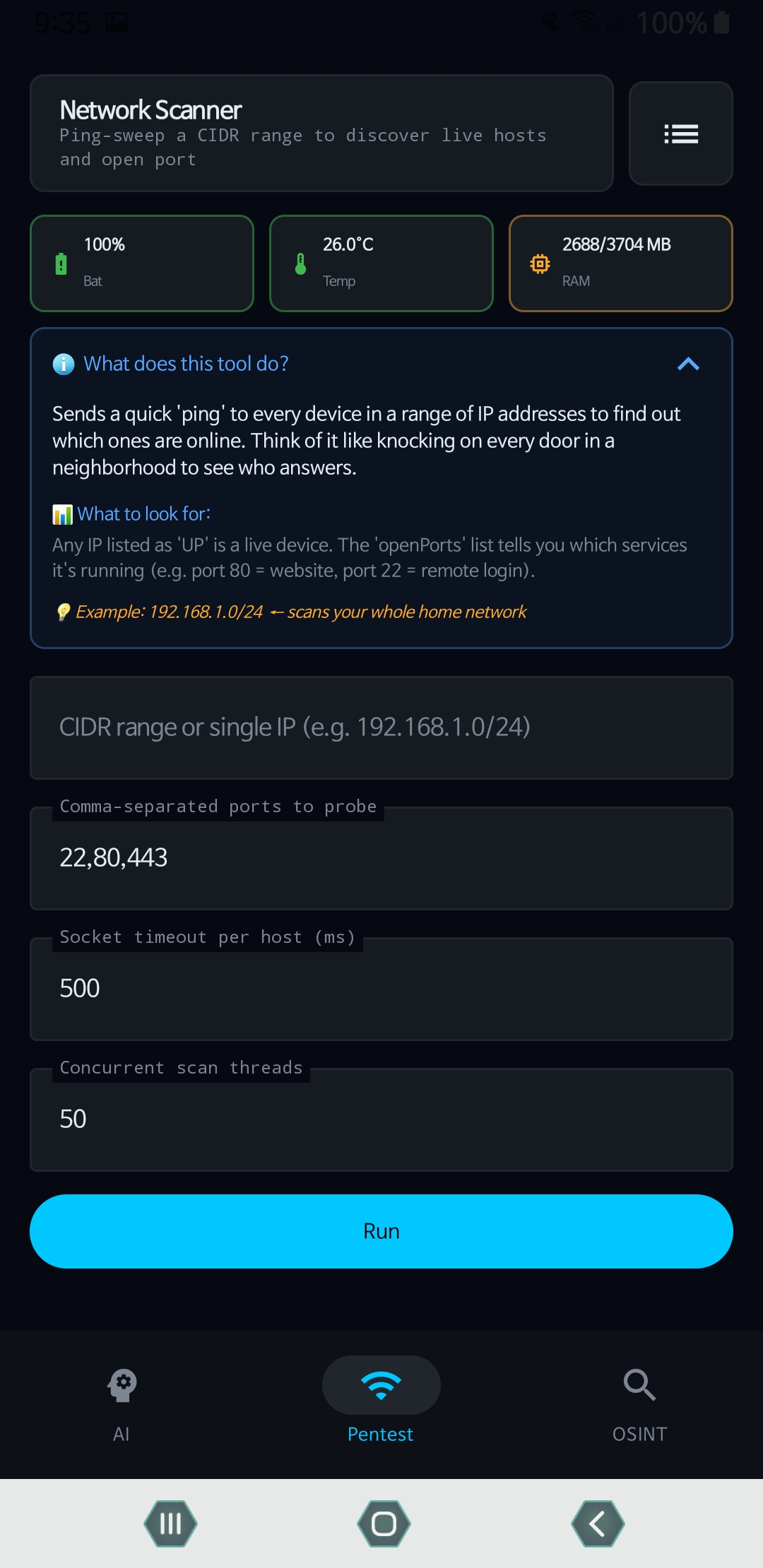
Optix network scanner tool form
Guided scanner UI Prompts and inline guidance lower the barrier for people learning how to scan responsibly.
OSINT and offensive tools

Research targets, inspect signals, and run focused actions from the same mobile workspace.

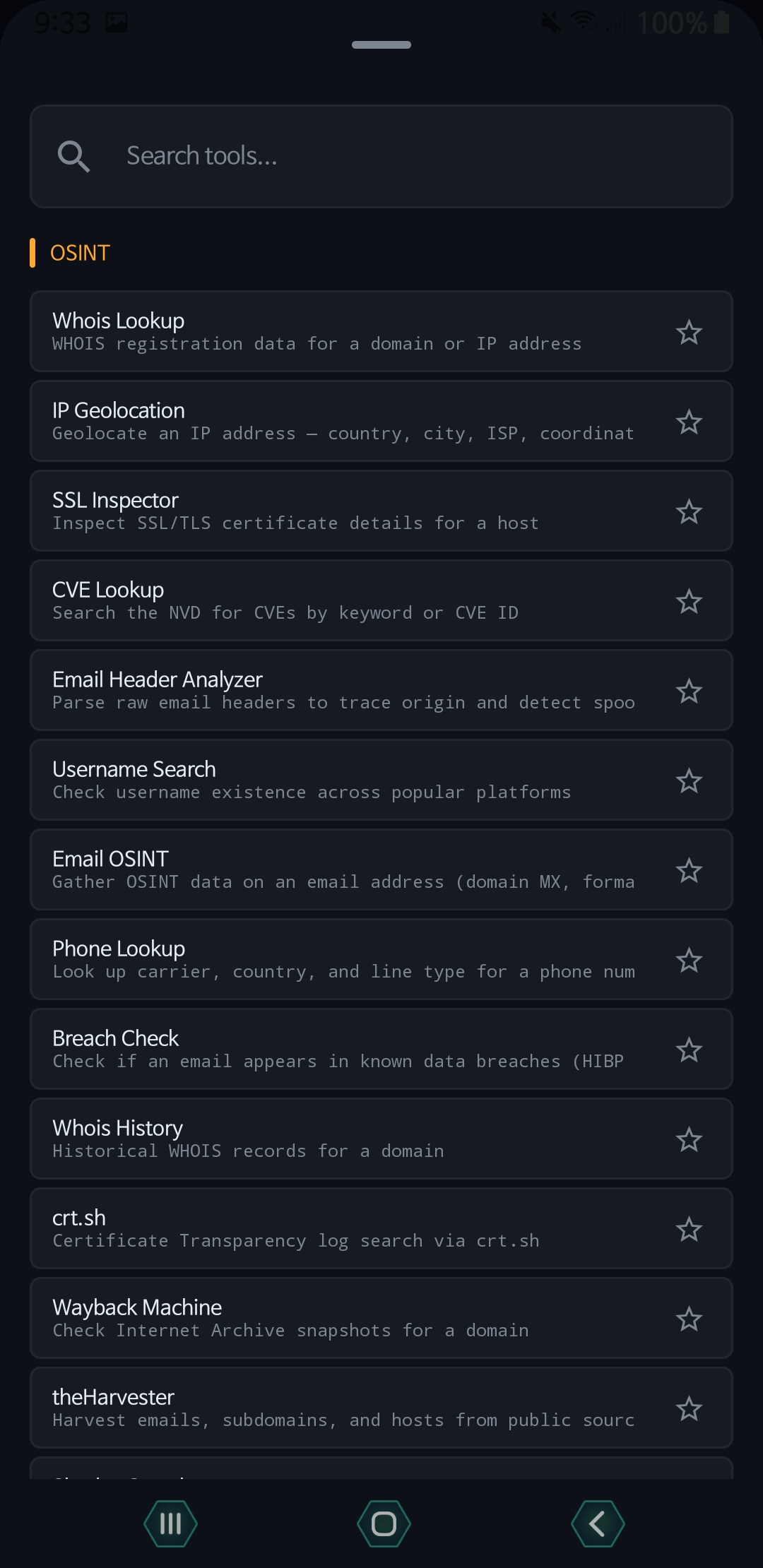
Perform rapid OSINT data gathering and practical exploitation testing from a single dashboard. All tools come with guided forms and structured outputs for maximum efficiency.

Dive into WHOIS, CVEs, username search, breach checks, and more.
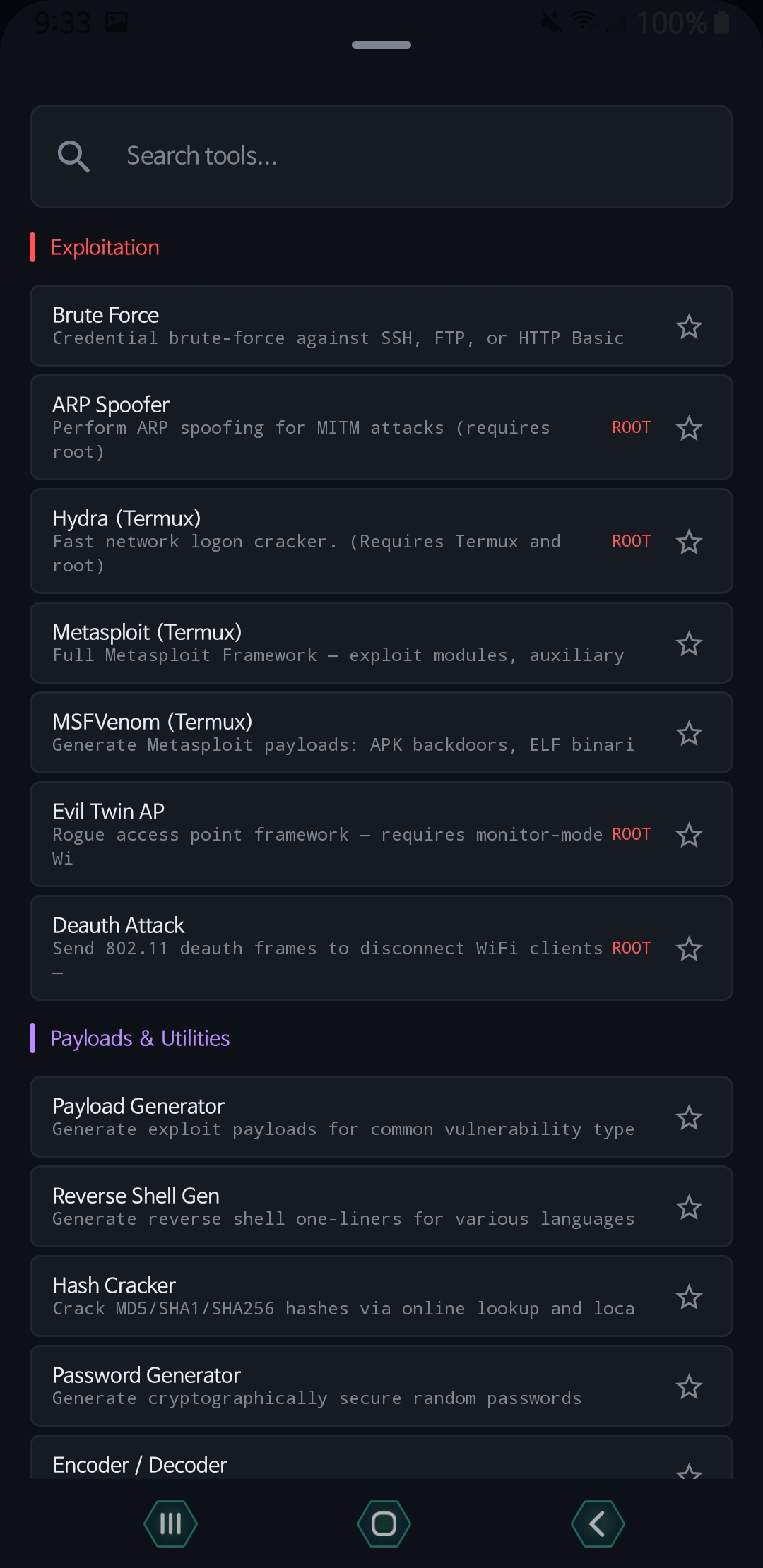
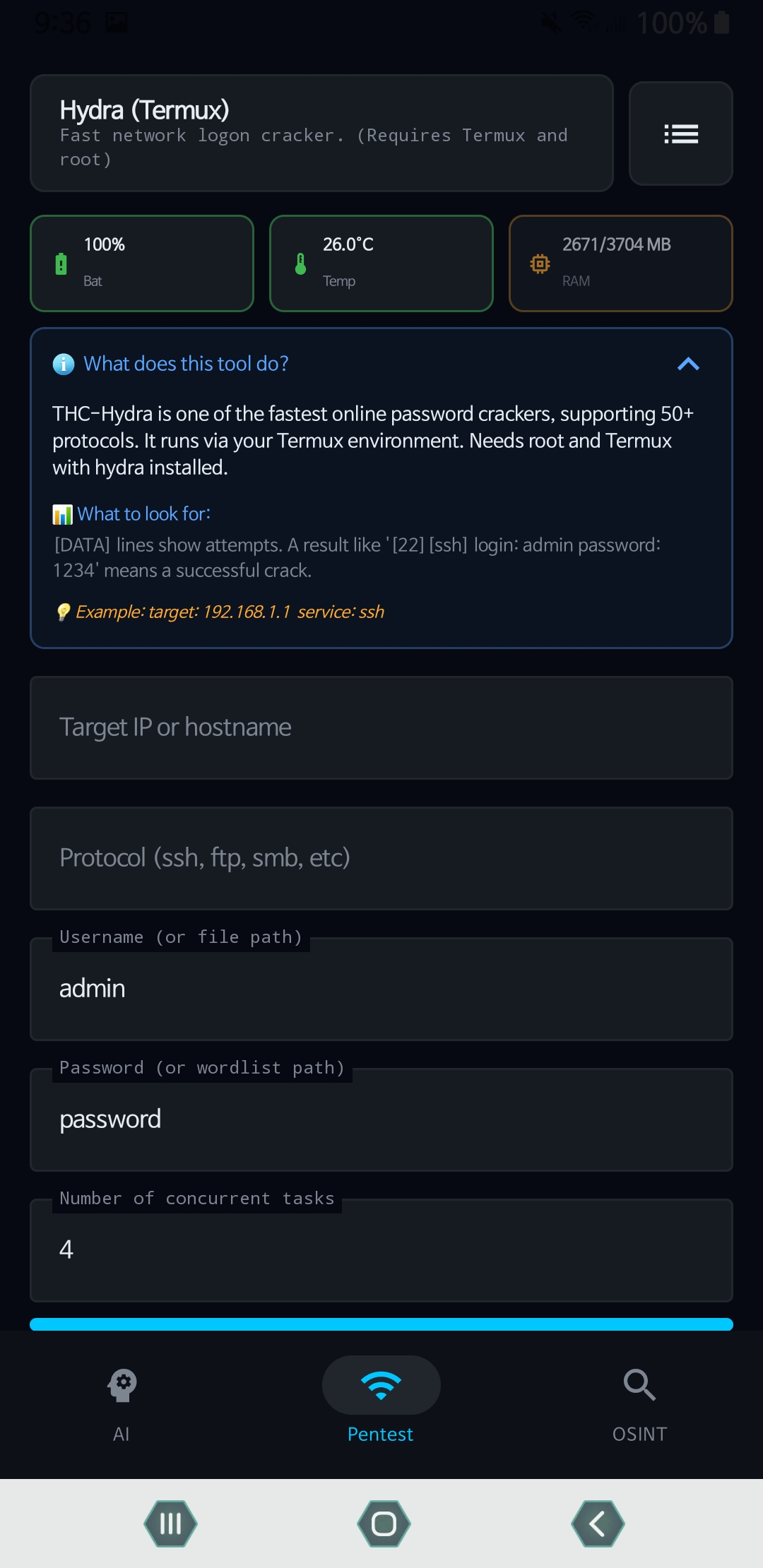
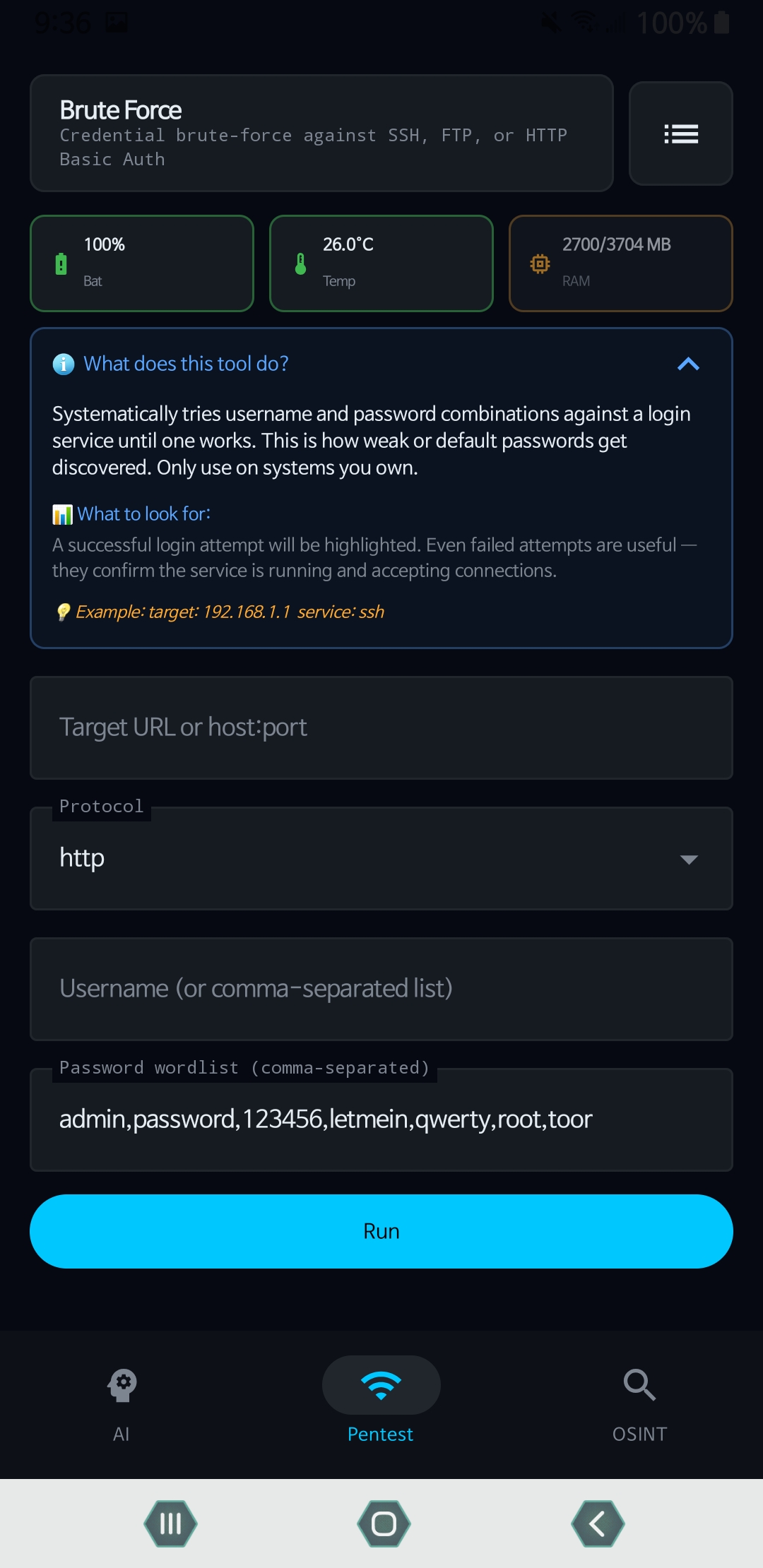
Set up active attacks using Hydra and customized brute-force workflows.
Understand expected outputs and parameter details before you execute a tool.
Optix OSINT tools list
OSINT lookup suite WHOIS, geolocation, CVEs, breach checks, and domain history are visible in one searchable list.
Optix exploitation and payload tools list
Exploitation catalog Payload tools, Hydra, Metasploit, and related offensive modules are shown as part of the wider toolkit.
Optix Hydra tool screen
Hydra workflow Advanced users can see real fields, task counts, and protocol setup rather than empty marketing claims.
Optix brute force workflow screen
Guided action screens Every screen reinforces the same value: real capability with built-in explanation and structure.

Why choose Optix?

Optix is designed from the ground up to be the ultimate mobile security companion. It balances intuitive design with powerful, deep functionality.

Transparent Workflow

No abstract promises. See exactly how the interface and tool categories operate.

Accessible for Beginners

Guided prompts and plain-English explanations lower the learning curve for complex tools.

Built for Power Users

Real operational depth ensures advanced users have the specific tools they need on the go.

True Mobile Experience

An Android app built specifically for mobile workflows, not a compromised web wrapper.

Ready to own the full toolkit?

Buy once. Keep the desktop app, the Android app, and future updates.

One-time purchase of $9.95 USD. No subscriptions. No ads. No recurring fees. Use Optix only on systems you own or are explicitly authorized to test.

61 tools across network scanning, OSINT, Android, and AI-assisted workflows.
Beginner-friendly prompts without hiding the advanced tool depth.
Usage library, documentation, and account-based downloads after purchase.
Designed for students, bug hunters, technicians, pentesters, and security teams.